Batch injection
Batch injection means running Saneject's normal editor injection pipeline across many assets in one operation.
Instead of opening one scene or prefab at a time and injecting manually, you can process a larger set of scene and prefab assets in one run and review one consolidated console output.
This is especially useful when your project grows and you need frequent dependency validation across multiple content areas.
It is recommended to batch inject the project periodically or before builds to verify that all dependencies are correctly resolved and that there are no missing references.
Ways to run batch injection
1. Batch Injector window
The window is designed for repeatable, project-scale batch injection runs with persistent scene/prefab lists and settings.
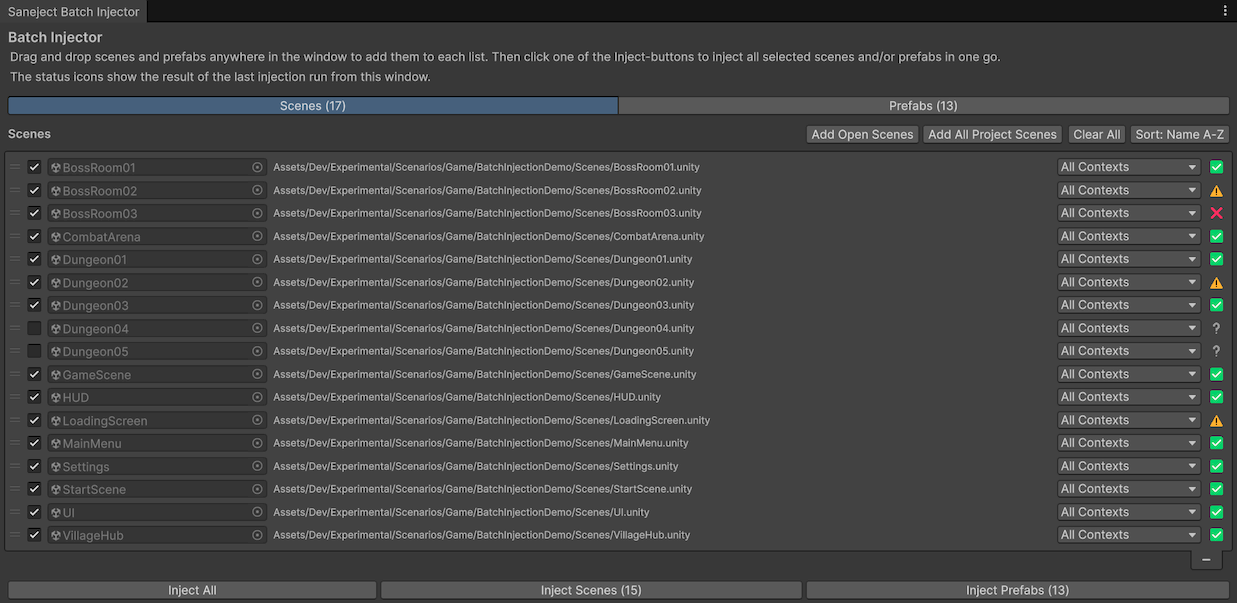
Menu path:
Saneject/Open Batch Injector Window
2. Selected assets from menus or toolbar
Use this when you want a targeted pass for a folder or a specific Project window selection.
Entry points:
- Main toolbar:
Batch Inject(ContextWalkFilter.AllContexts) - Project window context menu:
Assets/Saneject/Batch Inject Selected Assets/All Contexts - Project window context menu:
Assets/Saneject/Batch Inject Selected Assets/Scene Objects - Project window context menu:
Assets/Saneject/Batch Inject Selected Assets/Prefab Asset Objects - Project window context menu:
Assets/Saneject/Batch Inject Selected Assets/Prefab Instances - Main menu:
Saneject/Batch Inject Selected Assets/All Contexts - Main menu:
Saneject/Batch Inject Selected Assets/Scene Objects - Main menu:
Saneject/Batch Inject Selected Assets/Prefab Asset Objects - Main menu:
Saneject/Batch Inject Selected Assets/Prefab Instances

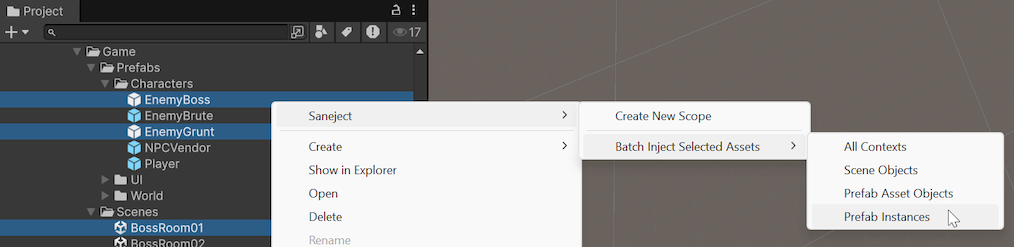
Batch Inject Selected Assets appears when the current Project selection includes at least one scene asset, prefab asset, or folder that contains them.
The toolbar button is the quick AllContexts version.
The menu variants let you batch inject the same selection with SceneObjects, PrefabAssetObjects, or PrefabInstances.
Behavior:
- Saneject scans the current Project selection using deep asset selection.
- It keeps scene assets and prefab assets.
- It applies the
ContextWalkFilterselected by the toolbar button or menu item to every collected asset. - It optionally shows a confirmation dialog (controlled by
Ask Before Batch InjectinSaneject/Settings). - It asks whether modified open scenes should be saved.
- It injects the selected scenes and prefabs.
- It logs per-asset output plus a final batch summary.
The selected-assets menu variants do not remap filters per asset type. The chosen filter is forwarded as-is to every collected scene and prefab asset, so a mixed selection only processes the contexts that match that filter inside each asset.
Batch Injector window features
The window has two tabs:
ScenesPrefabs
Each tab shows a persistent reorderable list with these per-row controls:
- Enable toggle (
Enabled) - Asset object field
- Asset path (shows
Deletedif the asset no longer exists) ContextWalkFilterdropdown (restricted by asset type)- Injection status icon
Add, remove, and organize assets
You can populate lists by:
- Drag and drop scenes or prefabs into the window.
Add Open Scenes(Scenes tab).Add All Project Scenes(Scenes tab, scansAssets).Add All Prefabs In Current Scene(Prefabs tab).Add All Project Prefabs(Prefabs tab, scansAssets).
You can organize lists by:
- Manual reorder (switches sort mode to
Custom). - Sort menu options:
Name A-Z,Name Z-A,Path A-Z,Path Z-A,Enabled-Disabled,Disabled-Enabled,Success-Error,Error-Success.
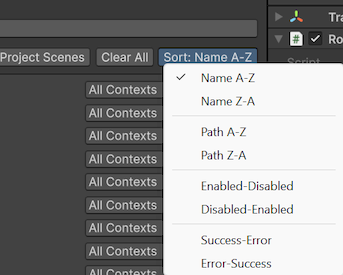
List and window state are persisted to:
ProjectSettings/Saneject/BatchInjectorData.json
Multi-select and context menu actions
Both lists support multi-selection and a context menu with:
Inject Selected: Runs batch injection only for the currently selected rows.Enable/Disable: Toggles whether rows are included when using the bottomInject AllandInject Scenes/Prefabsbuttons.Clear Injection Status: Resets selected rows toUnknownwithout changing their enable state or filter.Remove: Deletes selected rows from the list (does not delete assets from the project).Set Context Walk Filter/...: Applies the chosenContextWalkFilterto all selected rows.
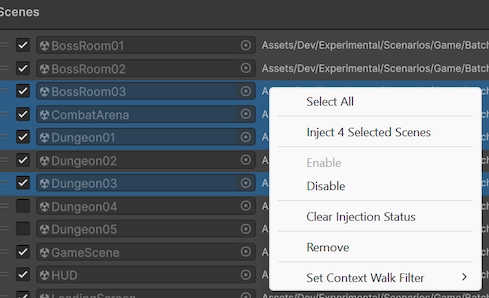
Input shortcuts:
Ctrl/Cmd + Aselects all rows in the active tab.Escclears selection in the active tab.
Inject buttons
Bottom buttons run injection for enabled rows:
Inject AllInject ScenesInject Prefabs
Inject Selected from the row context menu injects the selected rows directly, even if some of those rows are disabled.
Injection status meanings
In the Batch Injector window, each row has a status icon with one of these meanings:
| Icon | Status | Meaning |
|---|---|---|
| ❔ | Unknown |
No run has set status yet, or status was cleared. |
| ✅ | Success |
No unsuppressed errors and no unused bindings for that asset run. |
| ⚠️ | Warning |
No unsuppressed errors, but one or more bindings were unused. |
| ❌ | Error |
One or more unsuppressed errors were logged. |
Logging model for batch runs
Batch logging is scoped in layers:
- A batch header for scenes and/or prefabs.
- Per-asset start/end markers so each asset run is visually separated in the console.
- Normal injection logs inside each asset section, including errors and a per-asset summary line.
- A final batch summary section with aggregated scene and prefab summaries and elapsed times.
If no Scope components are found in a run, Saneject logs that nothing was injected for that run.
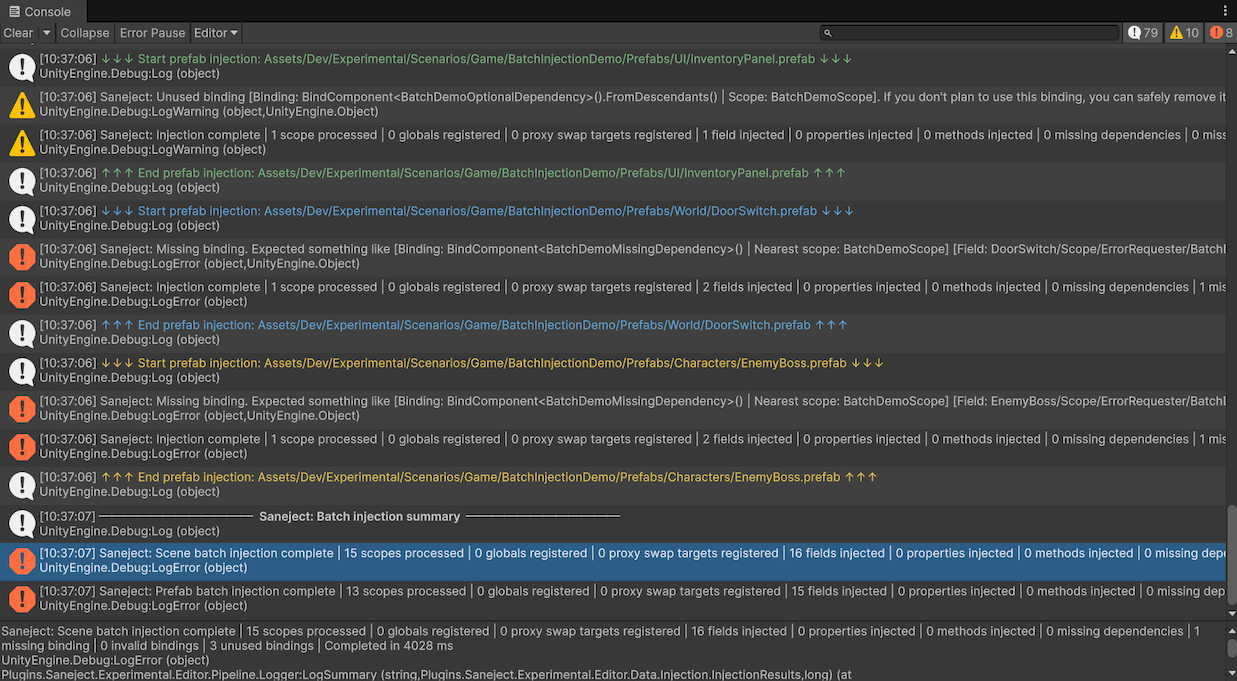
Logging output is affected by user settings in Saneject/Settings, including:
Clear Logs On InjectionLog Injection SummaryLog Unused Bindings
For more information on logging, see Logging & validation.
Context filter rules in batch injection
ContextWalkFilter can be chosen in two places:
- Per run from the
Batch Inject Selected Assets/...menu variants. - Per asset in the Batch Injector window.
Selected-assets batch menu variants use these labels:
All ContextsScene ObjectsPrefab Asset ObjectsPrefab Instances
Those commands apply the chosen filter to every collected asset in that run.
Allowed values depend on asset type:
| Asset type | Allowed ContextWalkFilter values |
|---|---|
| Scene asset | AllContexts, SceneObjects, PrefabInstances |
| Prefab asset | AllContexts, PrefabAssetObjects, PrefabInstances |
For details on filter semantics, see Context.
Batch injection pipeline overview
Batch injection uses the same core pipeline as regular injection.
For each asset, Saneject:
- Builds an injection graph from start transforms.
- Applies the selected
ContextWalkFilter. - Builds an
InjectionContextfrom active transforms, components, scopes, and bindings. - Validates bindings.
- Resolves globals, fields/properties, and methods.
- Injects values and marks modified objects dirty.
- Collects runtime proxy swap targets.
- Logs errors, warnings, and summary counts.
Batch-specific orchestration:
- Scene batch opens each scene in
OpenSceneMode.Single, injects from scene root objects, and saves each processed scene. - Prefab batch loads each prefab asset root, injects from that root, and saves assets when prefab processing completes.
If a saved active scene existed when the batch started, Saneject re-opens that scene at the end.