Settings
Saneject settings control editor behavior for injection, inspector presentation, logging, and code generation.
The Settings window has two tabs:
User Settings: personal settings stored on your machine.Project Settings: shared settings stored in the Unity project.
Open the Settings window
Use the Unity main menu:
Saneject/Settings
This opens the Saneject Settings editor window.
User settings vs project settings
| Type | Scope | Storage | Shared with team |
|---|---|---|---|
User Settings |
Current Unity user on current machine | EditorPrefs keys with prefix SanejectSettings_ |
No |
Project Settings |
Entire Unity project | ProjectSettings/Saneject/ProjectSettings.json |
Yes, if the file is version controlled |
Important behavior:
- Settings are editable only in Edit Mode.
- Outside the Unity Editor, settings access falls back to default values.
- Reset actions show a confirmation dialog before applying changes.
User settings
User settings are stored locally on your machine using EditorPrefs.
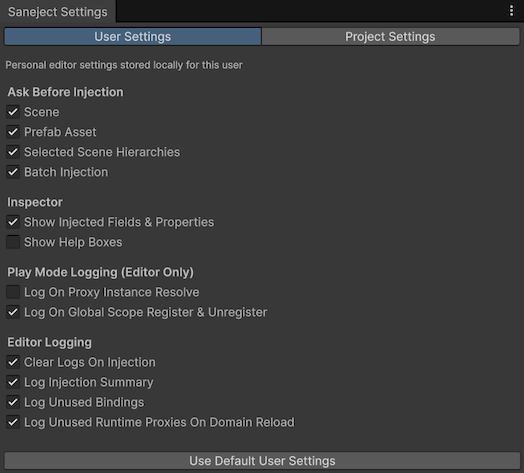
Ask Before Injection
All of these default to true, which shows a confirmation dialog before injection runs.
| Setting | What it controls |
|---|---|
Scene |
Ask before injecting the current scene. |
Prefab Asset |
Ask before injecting the current prefab asset. |
Selected Scene Hierarchies |
Ask before injecting selected scene hierarchies. |
Batch Injection |
Ask before batch injection runs. |
These toggles affect injection commands and batch commands described in Injection toolbar & context menus and Batch injection.
Inspector
All of these default to true.
| Setting | What it controls |
|---|---|
Show Injected Fields & Properties |
Shows members marked with [Inject] and [field: Inject] in inspectors. |
Show Help Boxes |
Shows explanatory Saneject help boxes in inspectors. |
Play Mode Logging (Editor Only)
All of these default to true.
| Setting | What it controls |
|---|---|
Log On Proxy Instance Resolve |
Logs when a runtime proxy resolves its runtime instance. |
Log On Global Scope Register & Unregister |
Logs global registration lifecycle events in GlobalScope. |
Editor Logging
All of these default to true.
| Setting | What it controls |
|---|---|
Clear Logs On Injection |
Clears the Unity Console before an injection run starts. |
Log Injection Summary |
Writes end-of-run summary logs. |
Log Unused Bindings |
Warns when bindings were declared but not used in a run. |
Log Unused Runtime Proxies On Domain Reload |
On domain reload, scans for runtime proxy assets and scripts that are not referenced by any scope binding and logs findings. |
For logging semantics and output shape, see Logging & validation.
Project settings
Project settings are stored in the Unity project at ProjectSettings/Saneject/ProjectSettings.json and are version controlled if the project is under source control, which means that these settings are shared with team members.
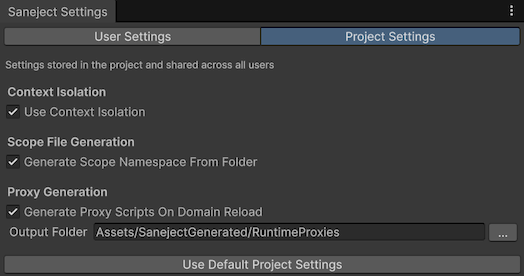
Context Isolation
| Setting | Default | What it controls |
|---|---|---|
Use Context Isolation |
false |
Enables strict context boundaries during resolution. When enabled, scene and prefab-instance dependencies resolve only inside the same context. Prefab assets are always context-isolated. |
For details on context behavior, see Context.
Scope File Generation
| Setting | Default | What it controls |
|---|---|---|
Generate Scope Namespace From Folder |
true |
When creating a new scope from Assets/Saneject/Create New Scope, generates a namespace based on the scope file's folder path. |
Proxy Generation
| Setting | Default | What it controls |
|---|---|---|
Generate Proxy Scripts On Domain Reload |
true |
Automatically generates missing runtime proxy scripts on Unity domain reload. |
Output Folder |
Assets/SanejectGenerated/RuntimeProxies |
Target folder for auto-generated runtime proxy scripts and assets. |
Output Folder notes:
- The folder picker accepts only folders under the current project's
Assetsdirectory. - If the picker selects a folder outside
Assets, Saneject logs a warning and keeps the current value. - Typed values are sanitized to forward slashes and invalid path characters are removed.
For runtime proxy behavior, see Runtime proxy.
Reset settings to defaults
The Settings window includes two reset actions:
Use Default User Settings: clears Saneject user keys fromEditorPrefs.Use Default Project Settings: rewrites Saneject project settings to defaults inProjectSettings/Saneject/ProjectSettings.json.
Use project reset carefully because it affects all contributors who use the project settings file.